We all know Outlook blocks images by default, yet there’s no native way to preview without images in the Marketo UI. Turns out it’s super-easy to add a toggle to Email Editor 2.0:
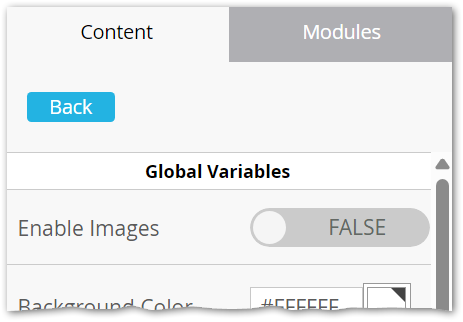
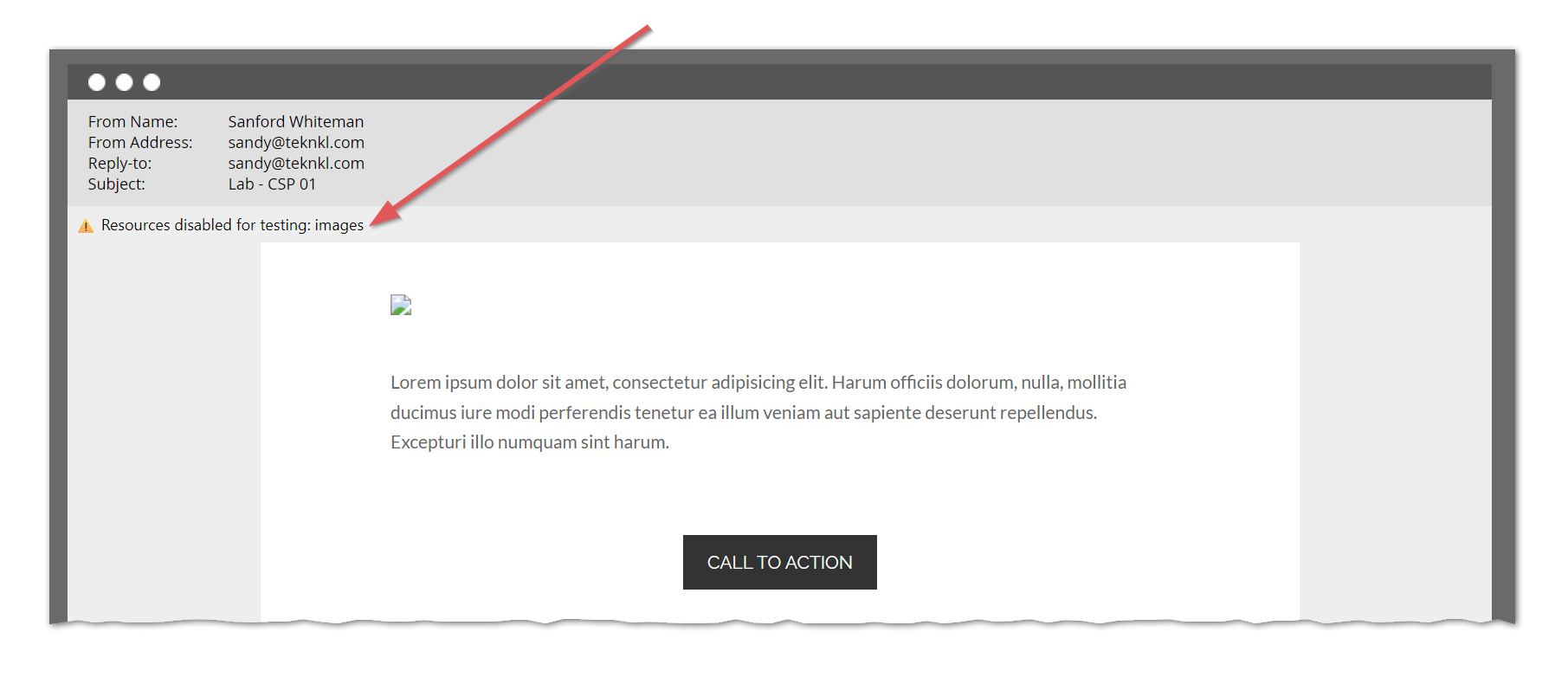
Only takes a little Email 2.0 template code high up in <head>:
<meta class="mktoBoolean" id="enableImages" mktoname="Enable Images" true_value="http:" false_value="'none'" default="true" />
<meta http-equiv="Content-Security-Policy" content="img-src ${enableImages}">
And this <style> right after:
<style>
:root:has(meta[http-equiv="Content-Security-Policy"][content="img-src 'none'"]) {
  --images-disabled: "images";
}
:root:has(meta[http-equiv="Content-Security-Policy"][content="font-src 'none'"]) {
  --webfonts-disabled: "webfonts";
}
:root:has(meta[http-equiv="Content-Security-Policy"][content="img-src 'none'"]),
:root:has(meta[http-equiv="Content-Security-Policy"][content="font-src 'none'"]) {
  body:before {
    font: small-caption;
    display: inline-block;
    padding: 6px;
    content: "⚠️ Resources disabled for testing: " var(--images-disabled,) " " var(--webfonts-disabled,);
  }
}
</style>
(As you might’ve figured, this <style> is also used in the companion post on disabling WebFonts, which is why I separated it out.)
How it works
<meta class="mktoBoolean"> creates a switch widget for a global Marketo variable.
That variable ${enableImages} is used in a Content-Security-Policy <meta> tag that controls allowed image URLs, flipping between 'none' (uh, none) and https: (implicitly allowing all).
The <style> adds a visual reminder that images aren’t accidentally broken, they’re deliberately disabled. Shockingly simple, right?
(You should know much of CSP can be implemented via HTML <meta> tags, not just via HTTP headers. Support isn’t as broad as with HTTP, but it works fine for img-src as long as the <meta> is parsed before images.)
Something similar in Email Editor 3.0
The newer editor doesn’t yet support variables, an oversight I assume will be corrected soon. Meantime, create a custom String field Test Lead for Mail Client. It’s empty by default, but for a dedicated test lead, set it to “Outlook”.
Put this Velocity {{my.token}} high up in the template <head>:
#if( $lead.testLeadForMailClient.equals("Outlook") )
<meta http-equiv="Content-Security-Policy" content="img-src 'none'" />
#elseif( !$lead.testLeadForMailClient.isEmpty() )
<meta http-equiv="Content-Security-Policy" content="img-src http:" />
#end
Add the same <style> tag as in the Editor 2.0 version:
<style>
:root:has(meta[http-equiv="Content-Security-Policy"][content="img-src 'none'"]) {
  --images-disabled: "images";
}
:root:has(meta[http-equiv="Content-Security-Policy"][content="font-src 'none'"]) {
  --webfonts-disabled: "webfonts";
}
:root:has(meta[http-equiv="Content-Security-Policy"][content="img-src 'none'"]),
:root:has(meta[http-equiv="Content-Security-Policy"][content="font-src 'none'"]) {
  body:before {
    font: small-caption;
    display: inline-block;
    padding: 6px;
    content: "⚠️ Resources disabled for testing: " var(--images-disabled,) " " var(--webfonts-disabled,);
  }
}
</style>
And preview by (sorry, “simulate content for”) your test lead:
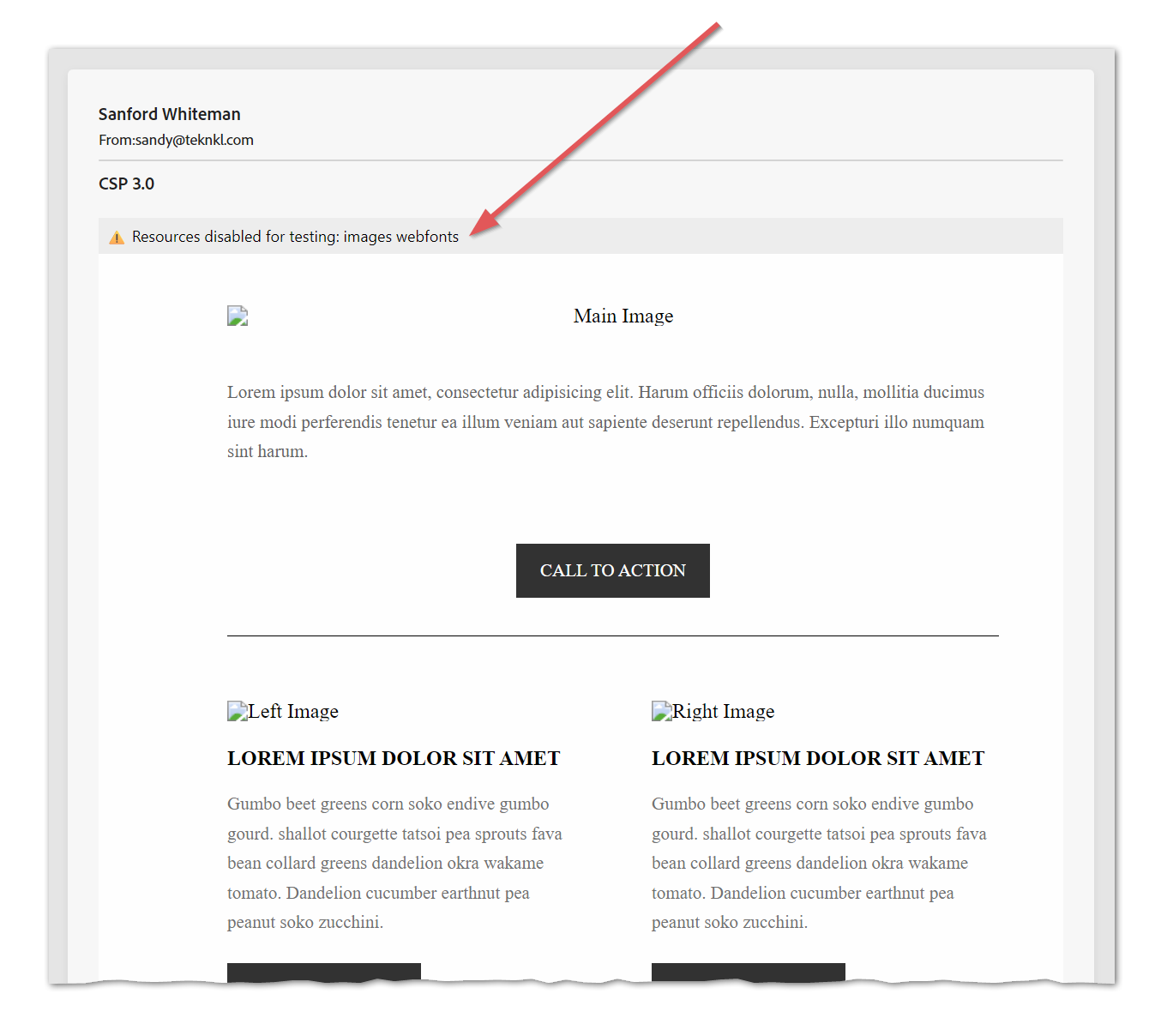
Same underlying use of CSP <meta>; not as pretty as the Email Editor 2.0 solution, but it works!